Partners
Manage supplier and customer information
On This Page
What are Partners?
Partners include suppliers (from whom you purchase) and customers (to whom you sell). Add partner information before creating purchase or sales orders.
Supplier
Companies or individuals from whom you purchase products, such as wholesalers, manufacturers, etc.
Customer
Companies or individuals who purchase your products, such as retail customers, distributors, etc.
Supplier Management
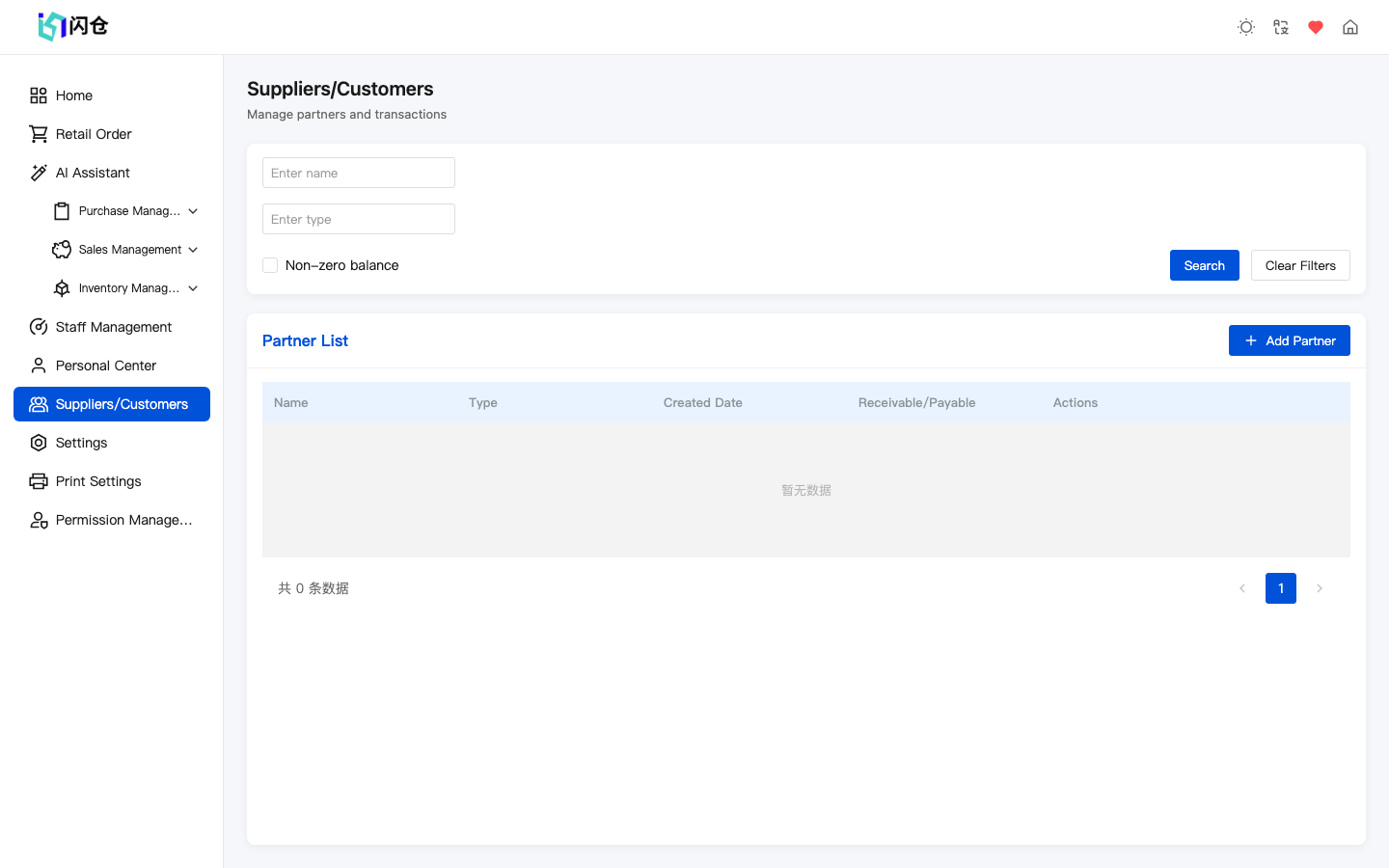
Enter Supplier Management
Click 'Partners' → 'Supplier Management' in the left menu
Click Add
Click the 'Add Supplier' button in the top right
Enter Supplier Name
Enter the company name or abbreviation, e.g., XX Trading Co.
Enter Contact Person
Enter the main contact person's name
Enter Phone Number
Enter contact phone for procurement communication
Enter Address
Enter supplier address (optional)
Save
Click 'Save' button to complete adding the supplier
Supplier Info Usage
- • When creating purchase orders, need to select supplier
- • View supplier's purchase history and outstanding payments
- • Analyze purchase amounts by supplier to optimize procurement
Customer Management
Enter Customer Management
Click 'Partners' → 'Customer Management' in the left menu
Click Add
Click the 'Add Customer' button in the top right
Enter Customer Name
Enter customer name or company name
Enter Contact Person
Enter the main contact person's name
Enter Phone Number
Enter contact phone number
Enter Address
Enter delivery address (optional)
Save
Click 'Save' button to complete adding the customer
Customer Info Usage
- • When creating sales orders, need to select customer
- • Track customer purchase history and receivables
- • Analyze customer value and identify VIP customers
Add Partner
The steps for adding suppliers and customers are similar. Here's an example of adding a supplier:
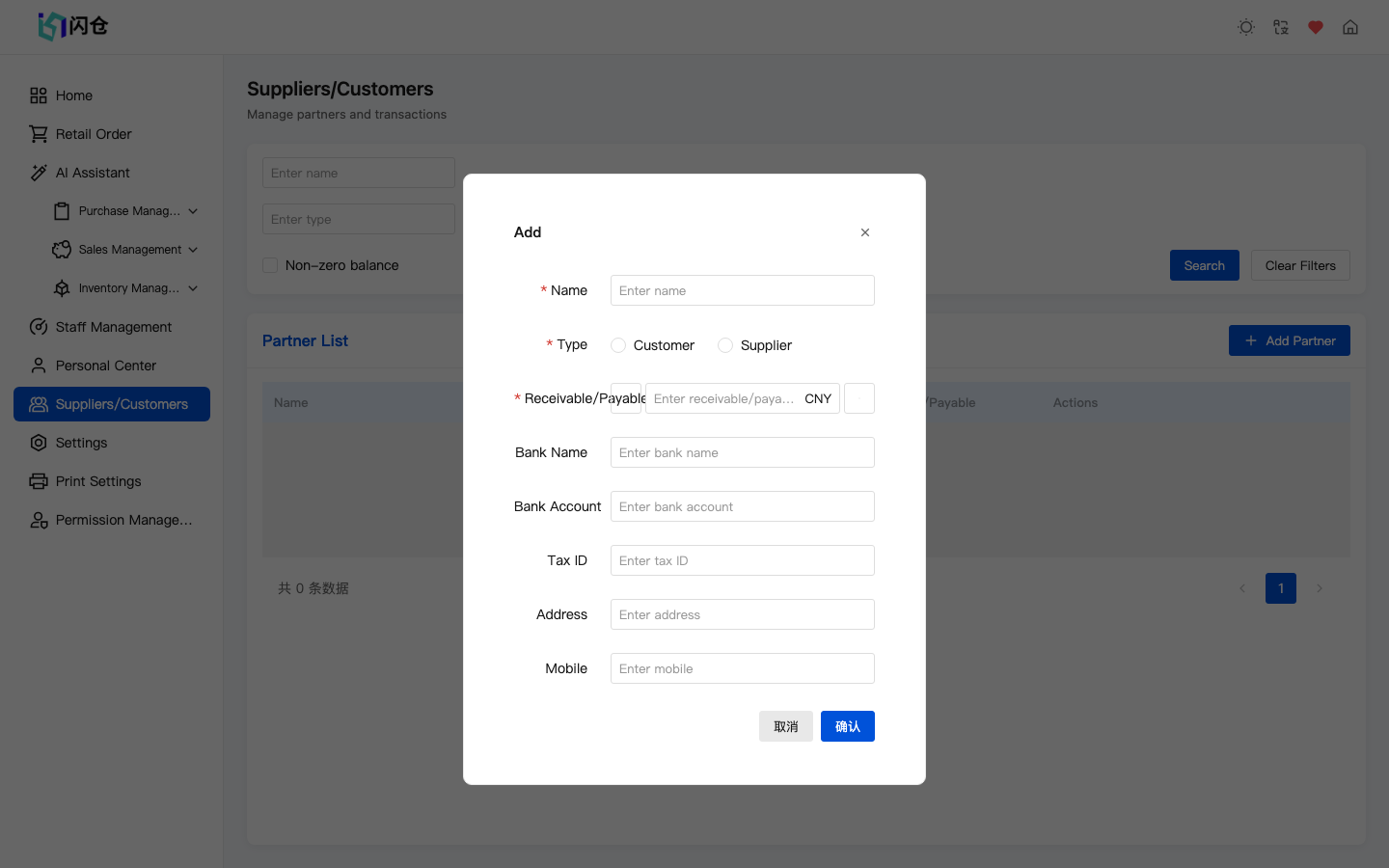
Enter Management Page
Select 'Partners' → 'Supplier Management' or 'Customer Management' in the left menu
Click Add Button
Click the 'Add' button in the top right
Fill in Basic Info
Enter required fields like name, contact person, phone number
Fill in Other Info
Fill in optional fields like address and notes as needed
Save
Click 'Save' button to complete
Tip
- Name and contact person are required fields, please fill in completely
- Recommend using mobile number for contact, easier for follow-up
- Address information is important for delivery, recommend filling in detail
Edit Partner
Find the Record
Locate the supplier or customer you want to modify in the list
Click Edit
Click the 'Edit' button next to the record
Modify Information
Update the fields that need to be changed
Save Changes
Click 'Save' button to save changes
Delete Partner
Find the Record
Locate the supplier or customer you want to delete in the list
Click Delete
Click the 'Delete' button next to the record
Confirm Deletion
Click 'Confirm' in the popup dialog to complete deletion
When not recommended to delete?
- • Partner has unsettled receivables/payables
- • May still have business dealings with this partner
- • Recommend using 'Disable' instead of delete